MTD Setup
Overview
At PaTMa, we have developed an inbuilt MTD solution to assist with the government requirement for quarterly submissions. In this article, we will break down the steps to link PaTMa directly to HMRC, select the properties you wish to report on, and then describe the process for submitting your quarterly reports.
In addition to this, multiple users can use the same account for MTD. So, if you and your partner have joint ownership of some or all of your properties, you can both submit your MTD returns via the system at no extra cost!
If you’re curious to know more about MTD in general, including the thresholds and when they will affect you, then head over to this section of our website for more information.
Linking Your Account To HMRC
What will you need?
- National Insurance Number (NINO)
- Gov Gateway Login
If you use an accountant, they may have already registered you with HMRC for Making Tax Digital (MTD). If you’ve not already registered yourself and got a login for MTD, it’s very straightforward, you’ll just need to head over to the Government website and follow the steps.
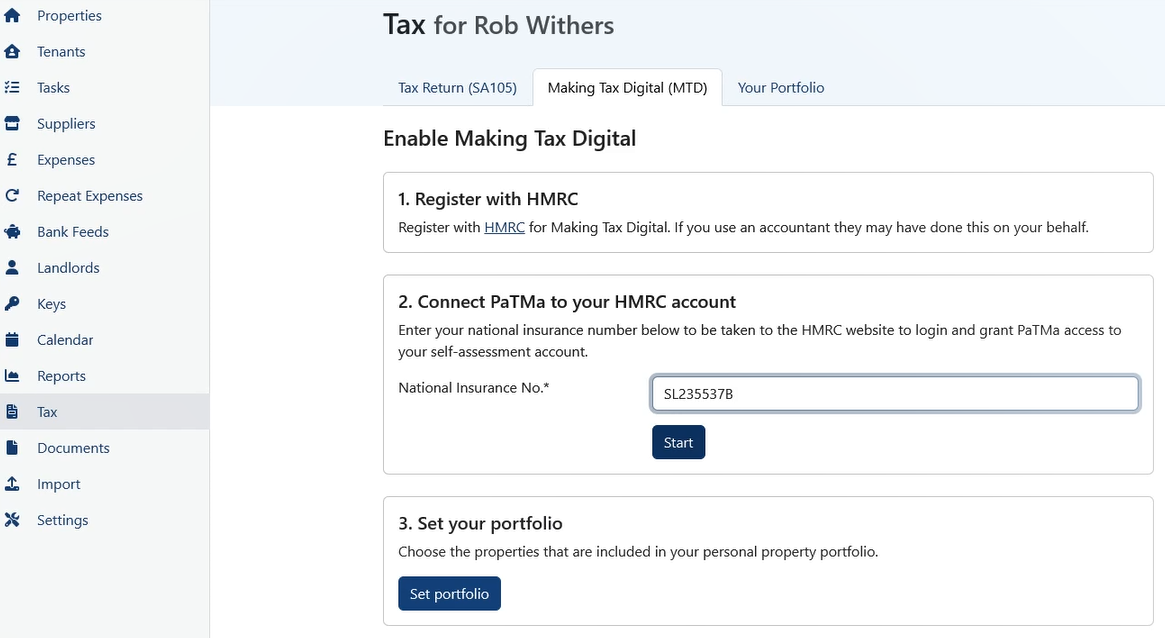
Once logged into PaTMa you’ll need to go to the Tax tab and select the “Making Tax Digital (MTD)” tab. Once there insert your NINO in the box as requested and select “Start” - this will redirect you to the Gov website.
Once on the Gov website, simply log in and select to “Give permission” - you’ll then be returned to PaTMa to configure your Portfolio.
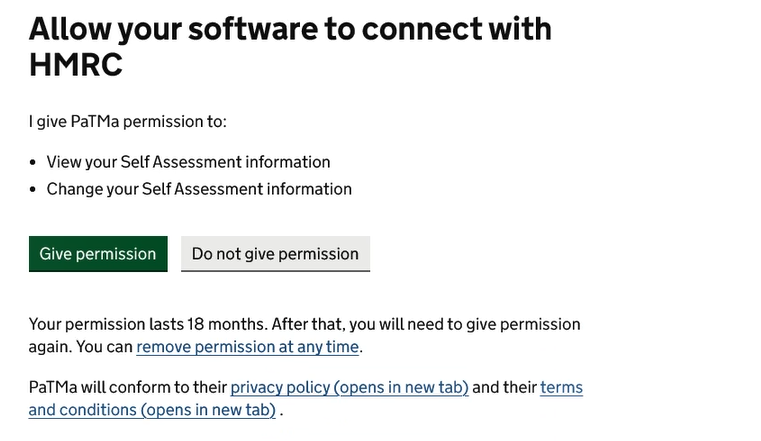
The link up to HMRC is valid for 18 months, after this period you will need to reauthenticate.
Select Portfolio
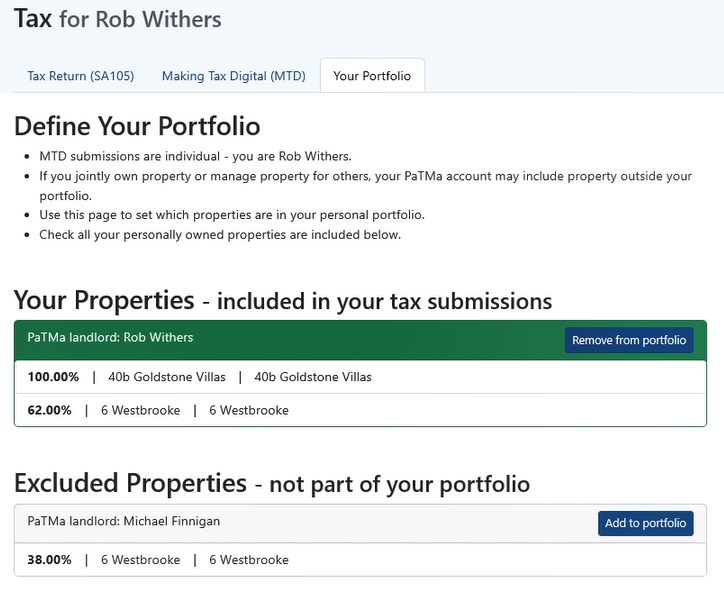
After linking to HMRC, the next step is to select the properties you want to include in your MTD calculations from your portfolio. As this submission is purely for you as an individual, it is important not to select any properties that are in another landlord's or company's name.
You can select a property you own a share in and assign just your ownership percentage to the filing, as demonstrated in the image below:
Reviewing & Submitting
With your portfolio designated, there aren’t any further steps to take until the end of the quarter.
Upon completion of the quarter, the next step is to review and submit the quarterly update. This is accessed via the “Tax” tab and then by entering the “Making Tax Digital (MTD)” section.
Here you will have two breakdowns, one for Foreign Property and the other for UK Property. If there are no foreign properties to report, then that corresponding section can be ignored.
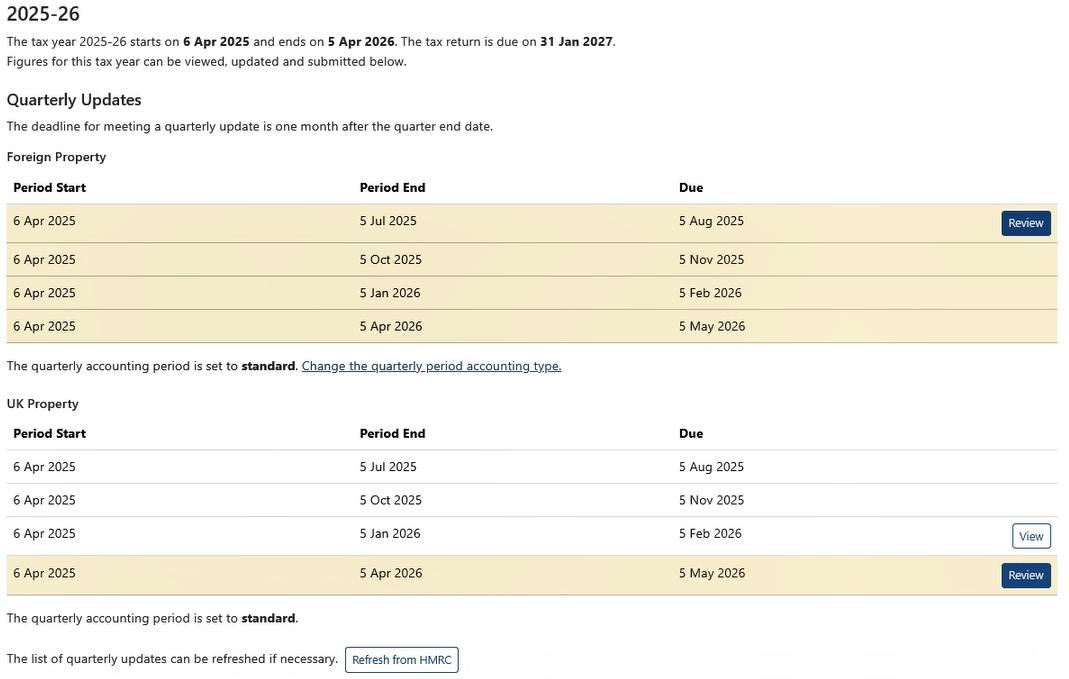
To review the relevant period, simply select the “Review” option to the right, this will then show you a breakdown of property income and expenses for that quarter.
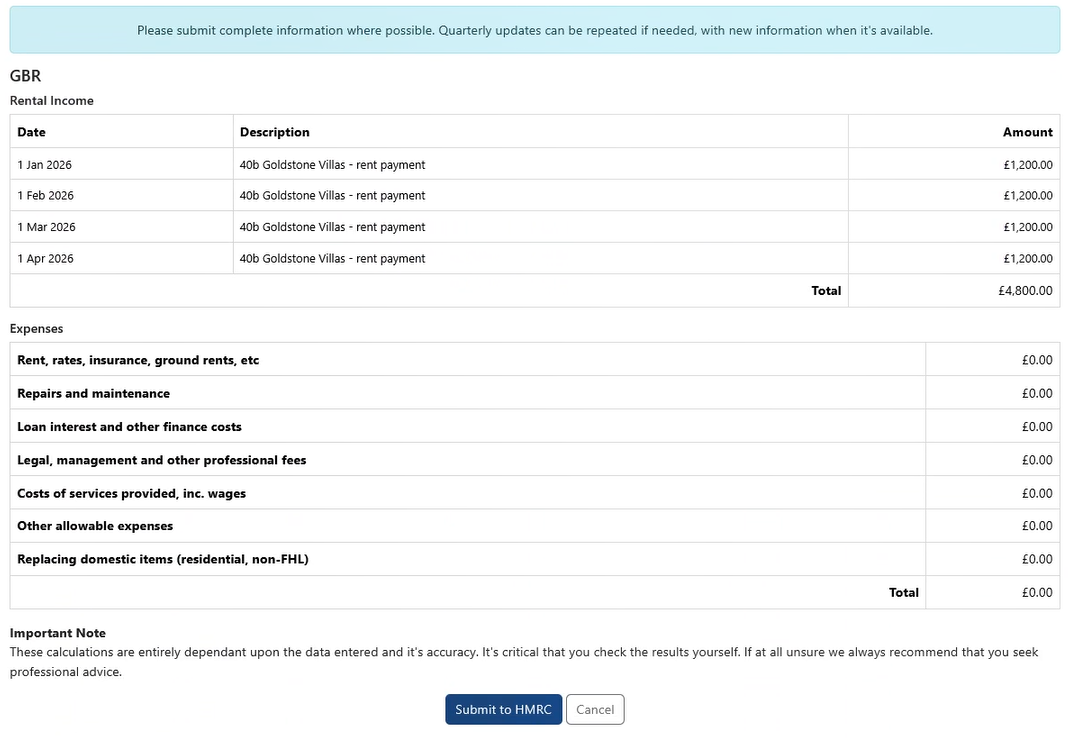
Upon reviewing the figures you can opt to “Submit to HMRC” or to cancel and make any amendments that are required.
Whilst it is important to submit correct information, there is the option to resubmit in the case of error.
Multiple Users
If you are in a partnership or using your PaTMa account alongside another landlord, each person can submit their own MTD returns at no extra cost.
Each landlord must:
- Log in using their own separate PaTMa user account
- Link their own Government Gateway account
- Select the properties they wish to report on
- Assign only their own ownership percentage for each property
This is important because HMRC requires every individual to report their share of the property's income and expenses, rather than the property's total figures.
For example, if you jointly own a property with someone else on a 50/50 basis, each user should assign 50% ownership when selecting their portfolio for MTD. PaTMa will then automatically calculate each person's share of the income and allowable expenses for their submission.
If both users were to select 100% ownership of the same property, each submission would include the property's full income and expenses, resulting in incorrect figures being reported to HMRC.
If your ownership percentages change over time, for example by adding or removing a joint owner, or transferring part of a property, you should first update the property's ownership using the Ownership Changes feature. PaTMa will then automatically apply the correct ownership percentages from the effective date, ensuring future MTD submissions reflect the correct ownership split while preserving historic records.
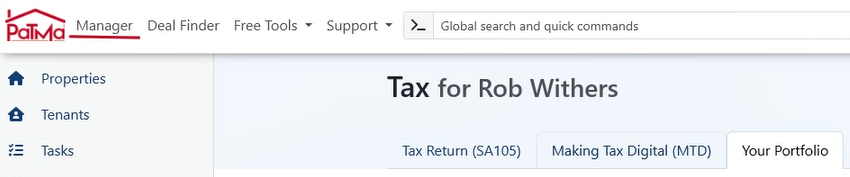
You can always double-check that you are submitting for the correct person by looking at the top of the MTD page, where PaTMa clearly displays who the tax submission is for:
Want to know more?
If you’re keen to know even more about MTD changes then why not dive into our recent blog post about MTD? If you prefer video, we also recently did a webinar on the topic!