Task Management
Overview
Need to organise a repair? Arrange a contractor visit? Keep track of a maintenance issue across multiple properties?
The Task Manager helps you keep everything in one place.
Tasks can be linked to properties, tenants and suppliers, allowing everyone involved to stay informed as work progresses. Notes, appointments, reminders and updates are all recorded within the task, creating a complete history from start to finish.
Whether you're managing a single property or a large portfolio, Task Management helps ensure nothing gets forgotten.
Getting Started
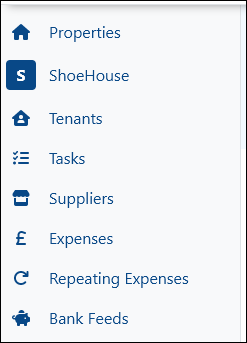
To access the Task Manager, select Tasks from the navigation menu.
If you already have active tasks, they'll be displayed automatically. If not, you'll be presented with the task search page.
To create a new task, select Add Task in the top-right corner.
You'll be asked to choose the property the task relates to, add a title and enter any relevant details.
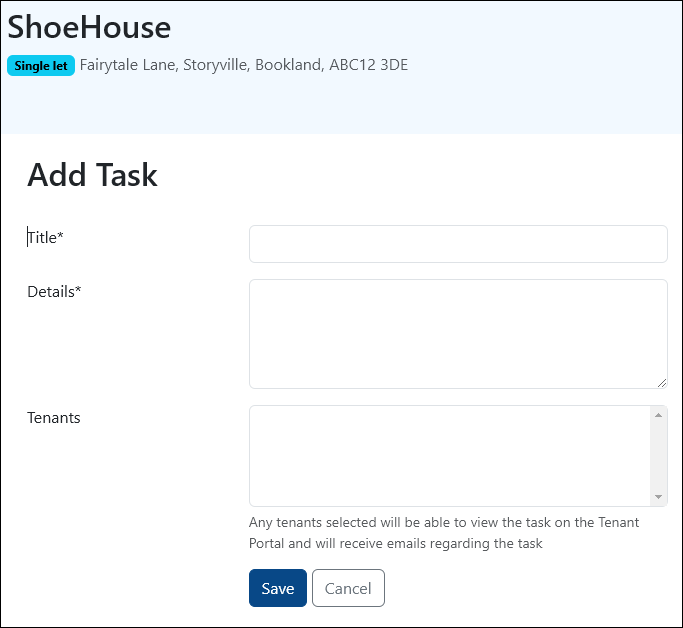
At this stage, don't worry about appointments, reminders or assigning suppliers. Those can all be added after the task has been created.
If a tenant is linked to the task, they'll receive updates by email and will be able to view the task from the Tenant Portal.
Managing a Task
Once a task has been created, open it to view the task timeline and activity history.
This is where you'll manage the task as it progresses.
For example, you can:
- Add notes, comments and images
- Schedule reminders
- Arrange appointments
- Assign the task to yourself, a tenant or a supplier
- Add or remove participants
- Close or reopen the task
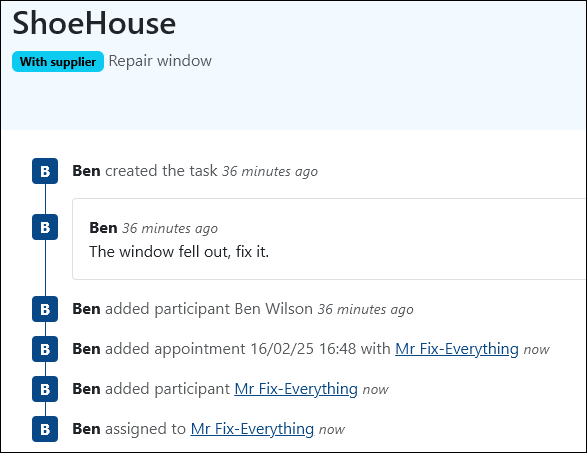
As updates are added, the timeline builds a complete history of the task, making it easy to see what's happened and when.
This can be particularly useful when dealing with long-running maintenance issues or contractor work.
Keeping Everyone Updated
One of the most useful aspects of Task Management is that everyone involved can stay informed automatically.
Depending on how the task is configured, updates can be sent to:
- Landlords
- Tenants
- Suppliers
Participants can reply directly to task emails and their response will automatically be added to the task as a note.
Emails also contain a link allowing participants to view the task and submit updates through a webpage, without needing access to your Property Manager account.
⚠️ Remember that all participants receive email notifications when updates are added. If you're making several changes at once, it's often worth combining them into a single update.
Assigning Suppliers
If work needs to be carried out by a contractor or supplier, they can be assigned directly to the task.
Before a supplier can be selected, they must first be added to your portfolio.
If the supplier doesn't already exist, select Add next to the supplier field to create them without leaving the task.
Suppliers can also be managed from the main Suppliers section of Property Manager.
Closing a Task
Once the work has been completed, the task can be closed by you or, if enabled, by the assigned supplier.
Open the Status tab and select Close Task.
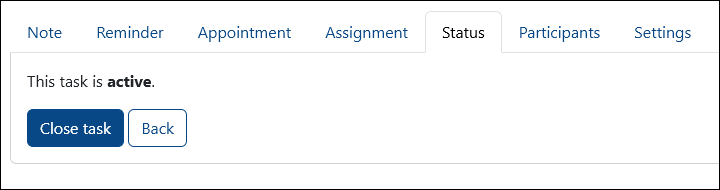
Closed tasks are removed from the default active task list but remain available for future reference.
If additional work is required, the task can be reopened at any time.
Finding Tasks
As your portfolio grows, filters make it easy to find exactly what you're looking for.
Tasks can be filtered by:
- Property
- Tenant
- Supplier
- Assigned To
- Date Range
- Status
- Title or Notes
For example, filtering by Supplier and Active will show all outstanding work assigned to a specific contractor across your portfolio.
Did You Know?
Tasks are also displayed on the relevant Property Overview page.
This means you can quickly see any outstanding work relating to a property and create new tasks without returning to the main Task Manager.