Key Management
Overview
Lost track of who has the spare key? Not sure whether the contractor returned the front door key? Managing multiple tenants in an HMO?
PaTMa's Key Management system helps you keep a clear record of every key associated with your properties, including who currently holds each key and who has held it previously.
You can track:
- Physical keys
- Entry codes or keypad access
- Key handovers
- Historical assignments
- Lost or retired keys
This gives you a clear audit trail of property access, which can be especially useful during tenant handovers, maintenance work and end-of-tenancy inspections.
Before getting started, you'll need a property in your portfolio.
You do not need an active tenancy to manage keys.
Creating a Key
Open the Keys Overview from the left-hand navigation menu.
Select Add Key in the top-right corner.

Choose the relevant property and complete the key details.
You'll be asked to provide:
- Type – Physical key or access code
- Key Number – A label or identifier for the key
- Description – What the key opens
- Notes – Any additional information
For physical keys, the key number is often a simple identifier such as:
- Key 1 (Landlord)
- Key 2 (Tenant)
- Key 3 (Spare)
For access codes, enter the keypad or entry code as the identifier.
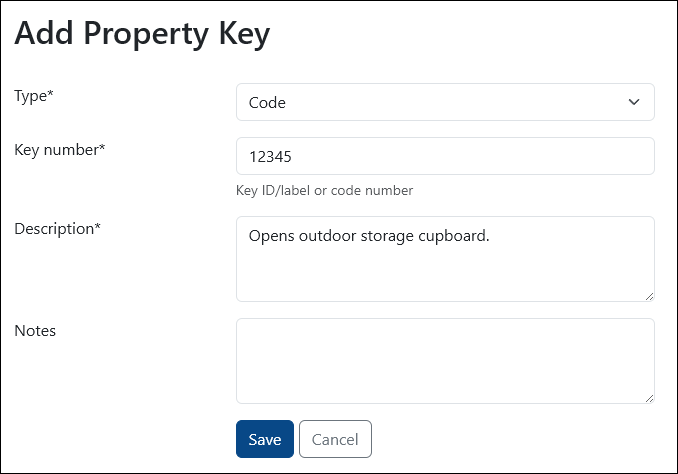
Once complete, select Save.
The key will now be stored and ready to assign.
Assigning a Key
After creating a key, you'll usually want to assign it to someone.
In the Keys Overview, use the filters to locate the key.
If you want to see every key in your portfolio, simply select Search with no filters applied.
Once you've found the relevant key, select New Location.
You'll then be asked to record where the key is currently located.
Available options include:
- Hand Over Date – When the key changed hands
- With Tenant for Tenancy – Assign to a tenant
- With Supplier – Assign to a contractor or supplier
- Other Location – Any other location, such as storage or office
- Notes – Additional assignment notes
⚠️ Only complete one location field: tenant, supplier or other location.
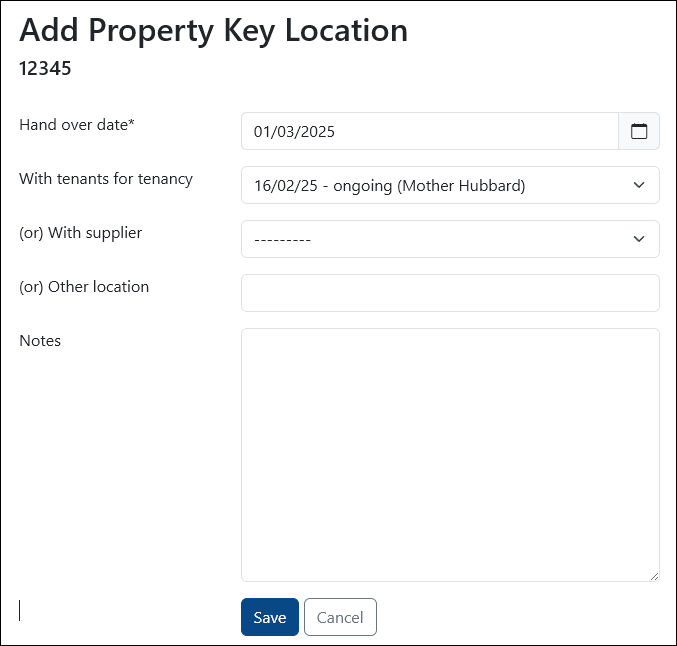
Select Save to store the assignment.
If the key is later returned or reassigned, simply update the location again.
PaTMa will automatically preserve the previous assignment in the history log.
Viewing Key History
Need to check who had a key last month?
PaTMa keeps a full history of key assignments, even after keys are reassigned.
To view assignment history, select the Rewind icon beside the key.
This gives you a full audit trail showing previous holders and handover dates.
This can be particularly useful if keys go missing or access issues need to be investigated.
Retiring a Key
Keys can be retired if they are:
- Lost
- Broken
- Replaced
- No longer in use
PaTMa will keep the historical assignment records even after retirement.
To retire a key, open the Keys Overview and select Edit on the relevant key.
The same form used to create the key will open, with two additional fields:
- Date Lost – Use if the key has been lost
- Date Retired – Use if the key has been removed from service

Once one of these fields has been completed, select Save.
The key will then be archived.
A Quick Tip
Many landlords number physical keys rather than describing them individually.
This makes handovers much easier.
For example, instead of recording “Front Door Key with Blue Tag,” a simple numbered system like Key 1, Key 2, and Key 3 makes tracking cleaner and easier to maintain.