MTD Setup for Joint Owners
Overview
If you jointly own rental properties, HMRC requires each owner to submit their own Making Tax Digital (MTD) updates using their share of the property's income and expenses.
Whether you own properties with your spouse, partner, family member or business partner, PaTMa makes it easy for each owner to submit their own return while sharing the same property data.
This guide walks you through the complete process, from checking your property ownership through to submitting your quarterly updates.
Step 1: Check Your Property Ownership
Before linking your HMRC account, take a moment to check that the property's ownership is recorded correctly.
PaTMa uses the ownership records to calculate each owner's share of rental income and expenses for MTD. Spending a few minutes checking them now can save you having to correct submissions later.
Navigate to:
- Your Portfolio
- Select the property.
- Open the Ownership tab.

Here you should check:
- Who owns the property.
- Each owner's ownership percentage.
- Whether any ownership changes have been recorded.

If everything looks correct, you're ready to move on.
Has the Ownership Changed?
Perhaps you've recently:
- Added your spouse as a joint owner.
- Bought out another owner.
- Transferred part of the property to a family member.
- Sold the property.
Whenever the legal ownership changes, record it in PaTMa before submitting your next MTD return.
Select:
Add Sale / Change of Owners

Enter the date the ownership legally changed.

This date is important because PaTMa uses it to determine which owner should receive future income and expenses for MTD purposes.
Next, select Edit Current Owners.

Here you can:
- Add new owners.
- Remove previous owners.
- Update ownership percentages.
When you save the changes, PaTMa automatically:
- Preserves your historic ownership records.
- Applies the new ownership from the effective date.
- Uses the correct ownership split for future MTD submissions.
If you'd like to review previous ownership arrangements, select View Ownership History.


Good to know: Updating ownership won't rewrite your historic financial records. It simply tells PaTMa when the new ownership arrangement begins.
Step 2: Connect Your HMRC Account
To connect PaTMa to HMRC, you'll need your:
- National Insurance Number (NINO).
- Government Gateway account.
If you've not yet registered for Making Tax Digital (MTD), you'll need to complete that with HMRC before continuing.
Each owner must connect their own Government Gateway account. Even though you're sharing the same property information, each MTD submission belongs to an individual.
Navigate to:
Tax → Making Tax Digital (MTD)
Enter your National Insurance Number (NINO) and select Start.
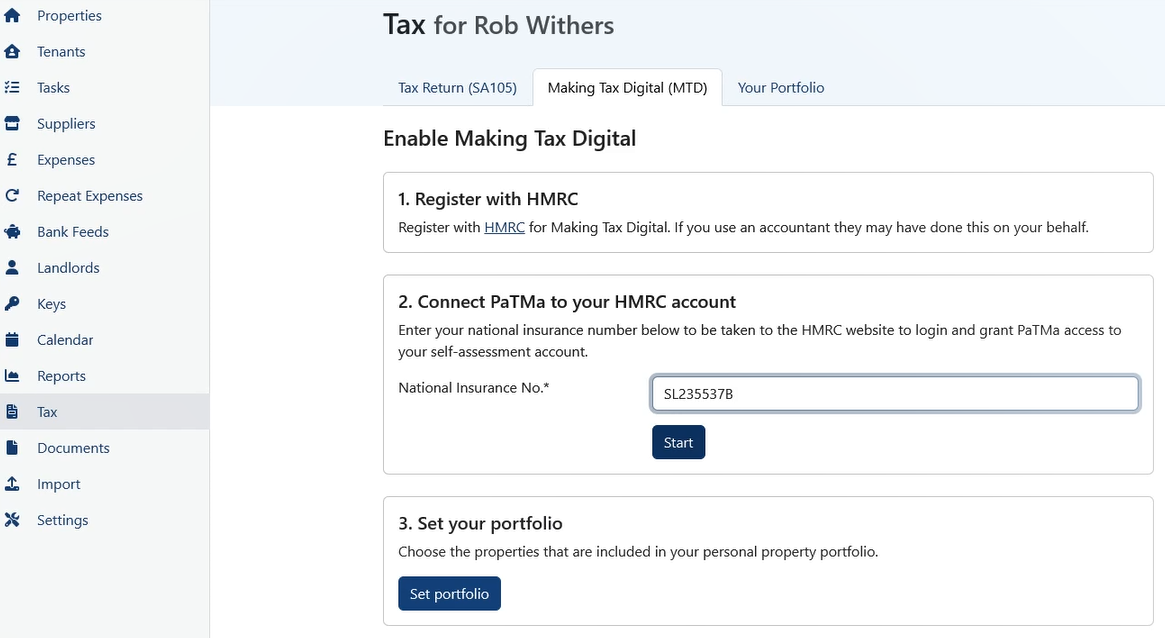
You'll be redirected to the Government Gateway website.
Sign in using your own Government Gateway account and select Give permission.
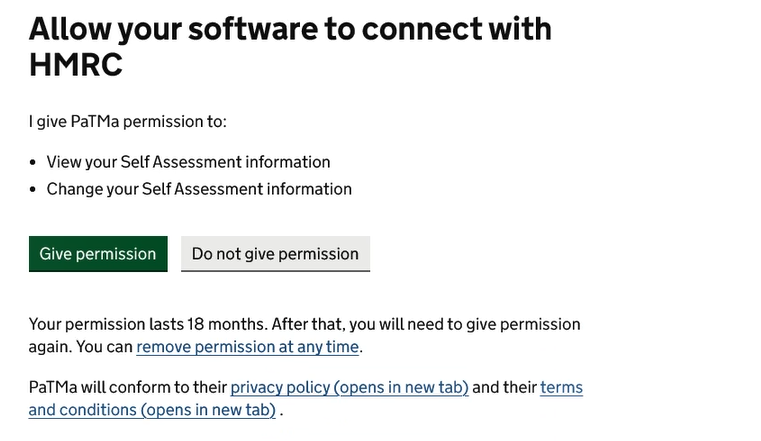
You'll then return to PaTMa.
Good to know: Once authorised, your HMRC connection remains active for 18 months before you'll need to reconnect.
Step 3: Choose the Properties You're Reporting
Now choose which properties you want to include in your MTD submission.
Only include properties that you personally own or part-own.
For each property, select your own ownership percentage.
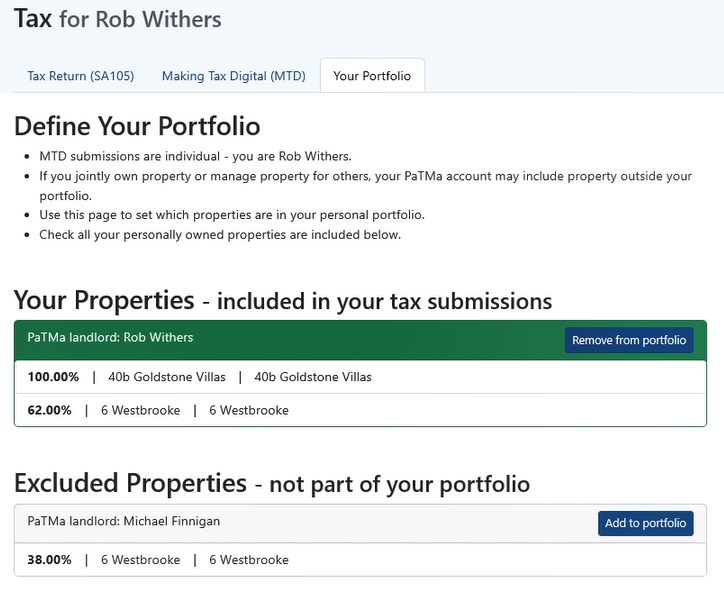
PaTMa will automatically calculate your share of:
- Rental income.
- Allowable expenses.
There's no need to work these figures out yourself.
Step 4: Give the Other Owner Access
If the other owner already has access to your PaTMa portfolio, you can skip this step.
If they don't, you'll need to invite them before they can connect their own HMRC account and submit their own Making Tax Digital (MTD) returns.
Navigate to:
- Select your profile icon in the top-right corner.
- Choose Your Profile.
- Select Account Users.
- Click Add User.
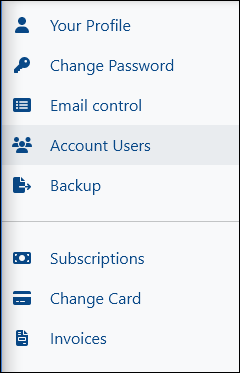
You'll be asked to enter a few details about the new user:
- Invite Email - The email address the other owner will use to sign in to PaTMa.
- Product - Select Property Manager. Only choose All if you also want them to have access to Deal Finder.
- Access Level - Choose the level of access they need:
- Read - They can view information but cannot make changes.
- Edit - They can view and update the portfolio. This is the recommended option for most joint owners.
- Admin - Full access to all products and account settings.
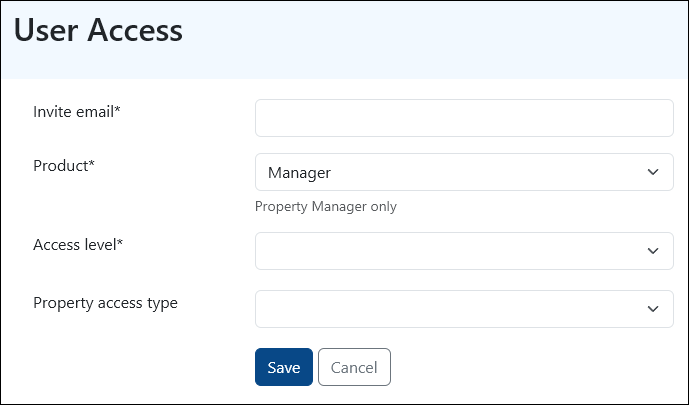
Once you've sent the invitation, the other owner will receive an email asking them to join your portfolio.
They'll need to follow the link in the email to create their PaTMa account (or sign in if they already have one) and accept the invitation.
After accepting, they'll be able to access the same portfolio, with permissions based on the access level you've granted.
Good to know: Sharing a portfolio doesn't mean sharing an HMRC account. Each owner connects their own Government Gateway account and submits their own MTD return.
Step 5: Connect the Other Owner's HMRC Account
Once they've accepted the invitation, the second owner should:
- Sign in to their own PaTMa account.
- Switch to the shared portfolio if prompted.
- Navigate to Tax → Making Tax Digital (MTD).
- Connect their own Government Gateway account.
- Select their own ownership percentage for each property.
Although both owners are working from the same property information, their Making Tax Digital submissions remain completely separate.
PaTMa automatically calculates each owner's share of the property's income and expenses based on the ownership records you set up earlier.
Step 6: Review and Submit Each Quarter
Once your setup is complete, there's very little to do until the end of the quarter.
When your submission period arrives, navigate to:
Tax → Making Tax Digital (MTD)
You'll see separate sections for:
- UK Property.
- Foreign Property.
If you don't own any overseas properties, you can simply ignore the Foreign Property section.
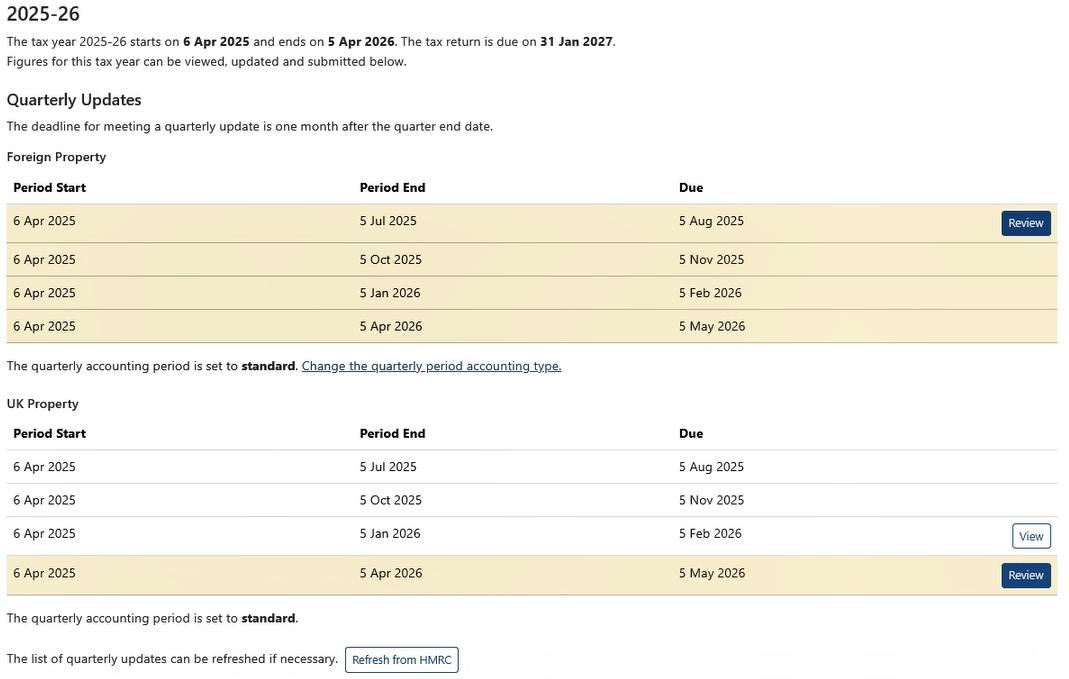
Select Review for the relevant quarter.
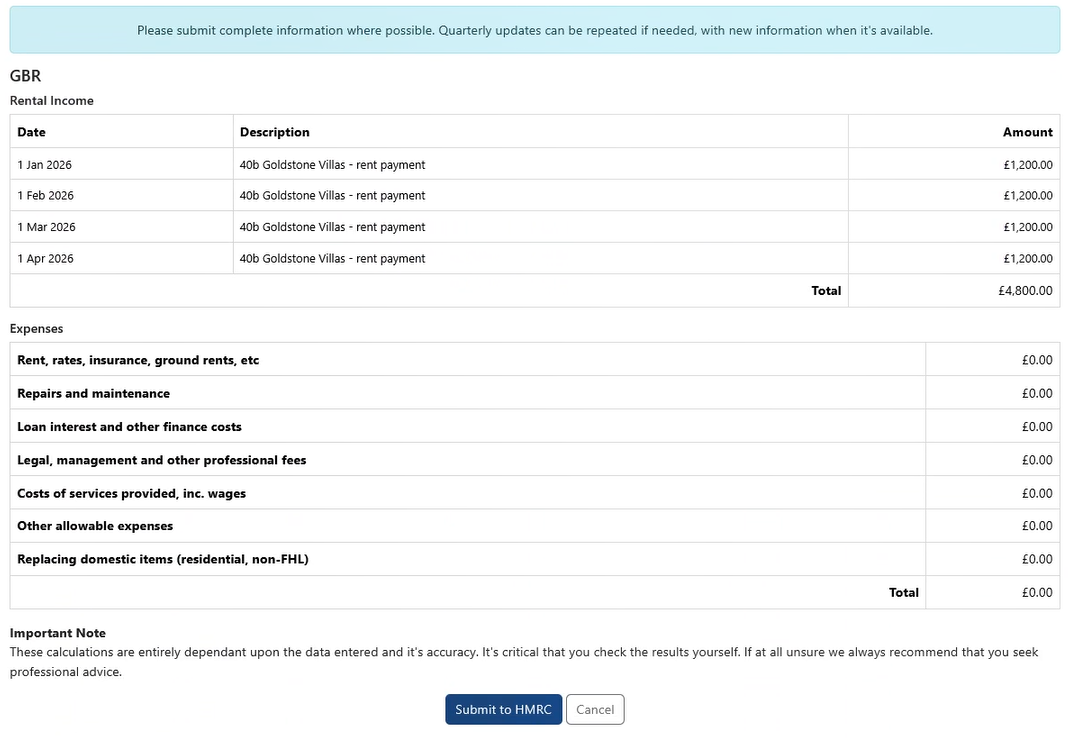
PaTMa will display your share of:
- Rental income.
- Allowable expenses.
Take a few moments to check everything looks correct.
If you're happy with the figures, select Submit to HMRC.
Good to know: If you later discover a mistake, you can correct your records and submit an updated quarterly return. Alternatively, corrected figures on your next return will also fix any issues.
Step 7: Before You Submit
Before sending your return, take one final look at the top of the MTD page.
PaTMa clearly shows which landlord's HMRC account is currently connected.
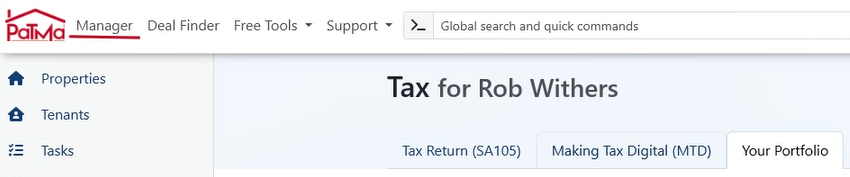
This is a quick way to confirm you're submitting the correct return for the correct person.
Common Mistakes to Avoid
Most setup issues come down to one of these:
- Selecting 100% ownership when you only own part of the property.
- Forgetting to update the Ownership tab after a legal ownership change.
- Inviting the other owner but forgetting to accept the invitation.
- Connecting the wrong Government Gateway account.
- Skipping the review before submitting.
Taking a few extra moments to check these areas can help prevent incorrect submissions.
A Quick Tip
Think of the Ownership tab as the source of truth.
Once your ownership records are accurate, setting up MTD becomes straightforward:
- Check the property's ownership details.
- Record any ownership changes.
- Connect your HMRC account.
- Invite any additional owners to your portfolio.
- Each owner connects their own HMRC account.
- Each owner selects their own ownership percentage.
- Review your figures each quarter.
- Submit your own MTD return.
PaTMa takes care of the calculations, ensuring each owner reports the correct share of the property's income and expenses while maintaining a complete ownership history.