Integrate PaTMa with Xero
Overview
If you use Xero to manage your accounts, you can integrate it with PaTMa so that your rental income can flow between the two platforms.
The integration is designed to save you time by letting you handle your bank reconciliation in Xero while keeping your rent records in PaTMa up to date.
Here's how it works:
- When rent is due in PaTMa, a corresponding rent invoice is created in Xero.
- When the tenant's payment appears in your bank account, you reconcile it against the Xero invoice.
- Once the invoice is marked as paid in Xero, PaTMa is updated to show the rent as received.
This means you can reconcile your bank transactions in Xero without having to separately record the same rent payment in PaTMa.
Before You Start
You'll need:
- A PaTMa account
- A Xero account
- Access to the Xero account you want to integrate with PaTMa
You should also make sure that the relevant properties and tenancies are already set up in PaTMa.
Video Walkthrough
Integrating PaTMa with Xero
The first step is to connect your Xero account to PaTMa.
1. Open the Accounting System Link
From the PaTMa menu, use the search bar and search for Accounting.
Select Accounting System Links from the results.

2. Link Your Xero Account
On the Accounting System Links page, select Link Software.
PaTMa will show you some information about how the integration works before you continue.
Select Xero and click Next.
If you're already logged into Xero in your browser, PaTMa should automatically identify your account.
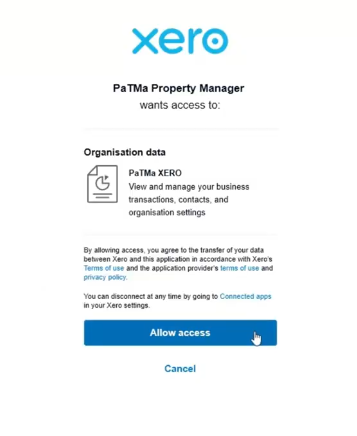
You'll then be taken to Xero, where you'll be asked to authorise the connection and allow PaTMa to access your Xero account.
Once you've approved the connection, your Xero account will be integrated with PaTMa.
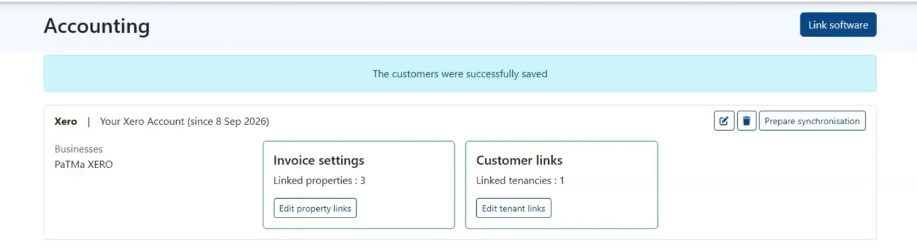
You'll the be returned to PaTMa and shown the homepage for completing the Xero intergration:
Set Up Property Links
Connecting the two platforms is only the first step. You then need to tell PaTMa which Xero account and tracking options should be used for your properties.
From the Accounting System Links page, select Edit Property Links.
You'll see your PaTMa properties and the available options from your Xero account.
Choose Your Xero Account
If you only have one Xero account connected, this will be the account you'll use.
If you have multiple Xero accounts connected, you can choose the appropriate account for each property.
Choose Your Tracking Category
PaTMa will use the Property category by default.
If you're using different tracking categories in Xero, you can select the appropriate category from the available options.
If the option you need doesn't already exist in Xero, PaTMa can create a new one for you.
If an appropriate option already exists, simply select it from the list.
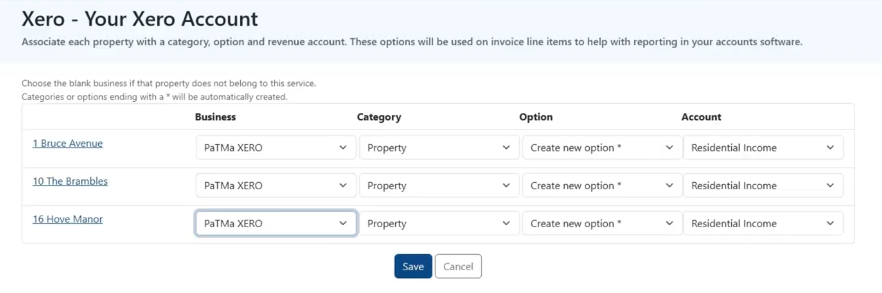
Once you've selected the appropriate options, click Save.
PaTMa will then link the property to the selected Xero account and tracking option.
If you return to Edit Property Links, you'll see that the relevant property options have been created and linked.
Set Up Customer Links
The final part of the initial setup is linking your PaTMa tenants to customers in Xero.
From the Accounting System Links page, select Edit Customer Links.
Choose the appropriate Xero customer for each relevant tenancy and click Save.
PaTMa will only suggest customers for properties that have active tenancies.
For example, if you have three properties but only one currently has an active tenancy, you may only see a customer available for that one property.
If the other properties later have active tenancies, they will become available to link as well.
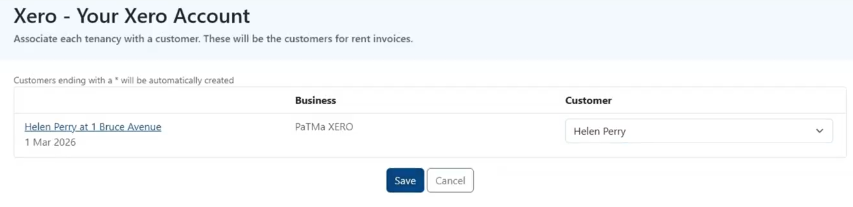
PaTMa also won't suggest empty or archived properties, helping to keep the list relevant.
Synchronising PaTMa and Xero
Once your property and customer links are set up, you're ready to synchronise the two platforms.
Select Prepare Synchronization, then click Synchronize.
PaTMa will create any Xero invoices that haven't already been created for rent that is due.
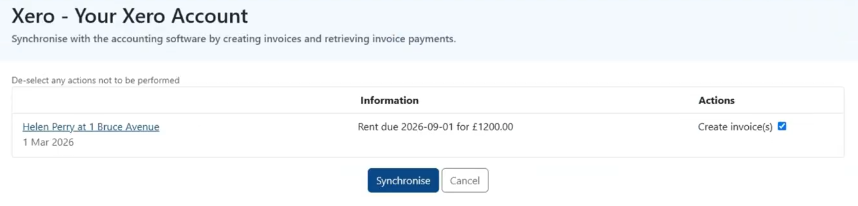
Once the invoices have been created, you can reconcile the corresponding bank transactions in Xero.
When you allocate a tenant's payment to the relevant invoice in Xero, the invoice will be marked as paid. PaTMa will then receive that information and mark the corresponding rent as received.
Automatic Synchronisation
You can also set up PaTMa to synchronise with Xero automatically.
Next to Prepare Synchronization, select Edit.
From here, you can enable automatic synchronisation.
Once enabled, PaTMa will automatically synchronise with Xero once a day in the morning. This means you don't need to manually start the synchronisation each day.
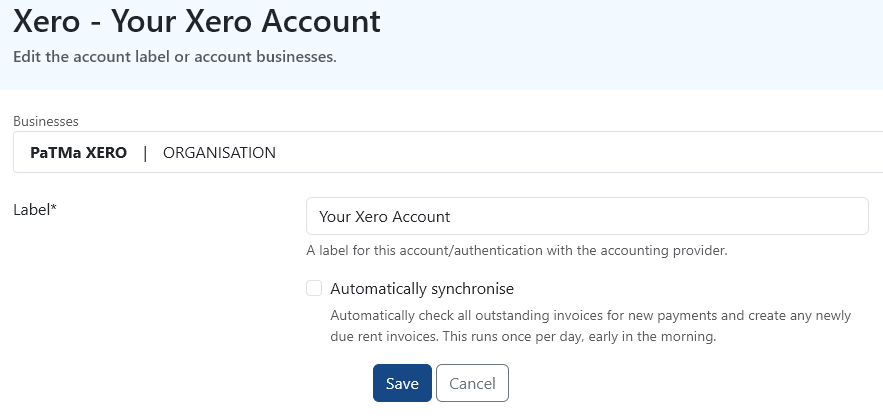
You can still use Synchronize manually whenever you want to run a synchronisation yourself.
Keeping Rent Records Up to Date
Once everything is set up, the integration makes the ongoing process much simpler.
Rather than reconciling the same payment separately in PaTMa and Xero, you can reconcile your bank transactions in Xero.
For example:
Rent due in PaTMa → Xero invoice created → Bank payment received → Payment reconciled in Xero → Invoice marked as paid → PaTMa rent marked as received
This means your Xero reconciliation can also keep your PaTMa rent records up to date, while automatic synchronisation takes care of keeping the two platforms connected each day.
A Quick Tip
Take a little time to set up your property and customer links carefully before your first synchronisation.
Once those links are in place, the integration can take care of much of the routine work for you, leaving you to focus on reconciling the actual bank transactions in Xero.