Property Tags
Overview
As you search through hundreds (or even thousands) of properties, you'll quickly find that not every listing deserves the same attention.
PaTMa's Property Tags help you organise potential investments by allowing you to categorise properties using your own custom labels. Whether you're identifying properties that aren't suitable, saving promising opportunities for later, or grouping properties by investment strategy, tags make it much easier to manage your search.
Tags work across both Deal Finder and the Browser Extension, meaning a property you've tagged while browsing online will already be categorised when you return to it in Deal Finder.
Some examples of useful property tags include:
- Not Suitable – Ignore properties that don't meet your criteria.
- High Priority – Properties you want to revisit first.
- Below Market Value – Properties that appear to offer strong value.
- HMO Potential – Suitable for conversion into an HMO.
- Buy to Let – Fits your standard investment criteria.
- Holiday Let – Suitable for short-term letting.
- Awaiting Viewing – Properties you've shortlisted to visit.
- Offer Submitted – Track properties you've made offers on.
Because you can create your own tags, you can organise properties in whatever way works best for you.
Creating Property Tags
PaTMa includes a default Not Suitable tag, but you can create as many additional tags as you need.
To create a new tag:
- Open Settings within Deal Finder.
- Select the Tags tab.
- Click Add Tag.
- Enter a name for your new tag.
- Tick Quick-set Listing.
- Click Save.
Once saved, the tag becomes available throughout Deal Finder and the Browser Extension.

Using Property Tags in the Browser Extension
When viewing a property using the Browser Extension, you'll find the Property Tags dropdown near the top of the panel.
It appears just below the property's address and floor area information.
Simply choose the tag that best describes the property.
The tag is saved immediately and will automatically carry across to the same property within Deal Finder.
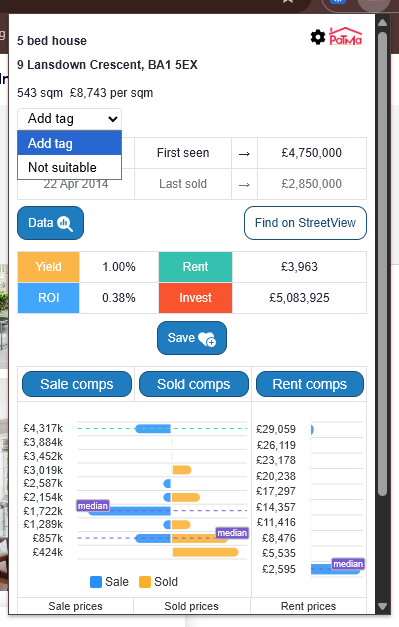
This makes it easy to categorise properties while browsing Rightmove, Zoopla or other supported property websites without needing to return to Deal Finder.
Using Property Tags in Deal Finder
Property Tags become particularly powerful when browsing properties inside Deal Finder.
Each property listing includes a tag dropdown, allowing you to quickly categorise properties as you work through your search results.
Simply select the appropriate tag for each property.
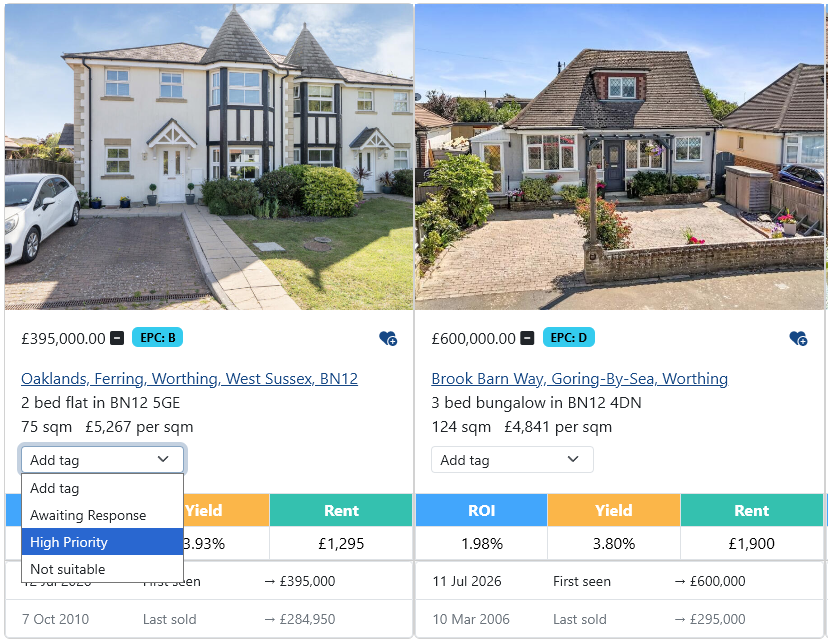
Because tags are applied instantly, you can gradually build up your own organised property database as you research potential investments.
Filtering Your Searches
One of the biggest benefits of Property Tags is the ability to filter future searches.
From the search filters at the top of the Properties page, you can filter results using your tags.
For example, you can choose to:
- Show only properties with a specific tag.
- Exclude properties with a specific tag.
- Combine multiple tags to refine your results even further.
This is especially useful for excluding properties you've already ruled out using the Not Suitable tag, allowing you to focus only on fresh opportunities.
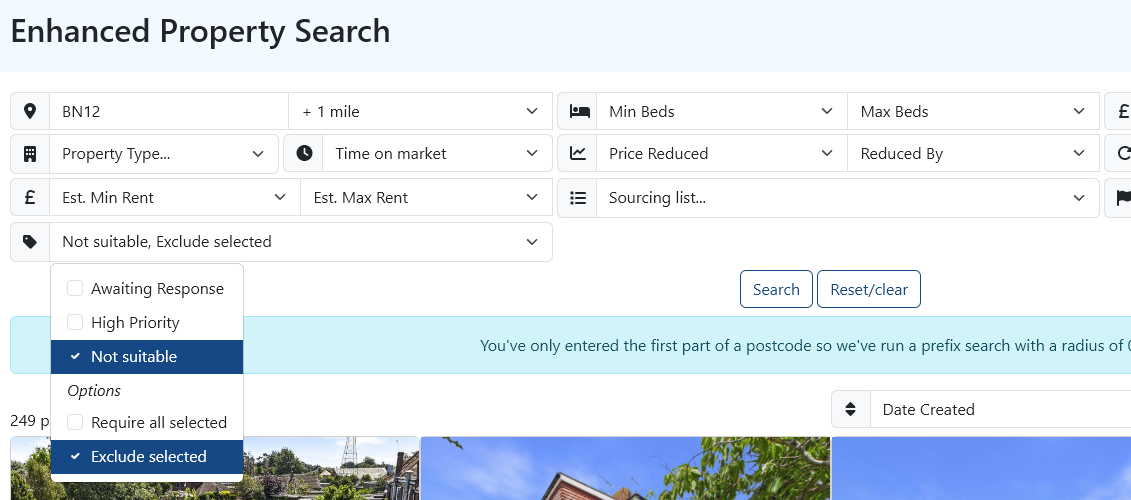
Combining Multiple Tags
You're not limited to using just one tag.
Multiple tags can be combined to create more detailed search criteria.
For example, you might filter for properties that are:
- Below Market Value and Needs Refurbishment
- Awaiting Viewing and High Priority
Using multiple tags allows you to create a workflow that matches the way you search for investment opportunities.
A Quick Tip
Don't be afraid to create tags that match your own investment strategy rather than trying to fit into a predefined system.
A handful of well-chosen tags can save hours of repeatedly reviewing the same properties and make it much easier to focus on the opportunities that matter most.