Add Images
Overview
Deal Finder automatically imports property images where they're available, such as images from Zoopla listings.
You can also add your own images to a prospect when you want to include additional information about the property.
This can be useful for things such as:
- Photos you took while viewing the property
- Potential repairs or improvements that may be required
- Other images you want to keep with your property research
You can also add a YouTube video thumbnail if you want to include an image from a property tour.
Add an Image to a Prospect
Images are added to individual properties, so you'll need to have the property on your Shortlist first.
1. Open the Prospect
From your Shortlist, open the property you want to add an image to.
Select the Attachments tab.
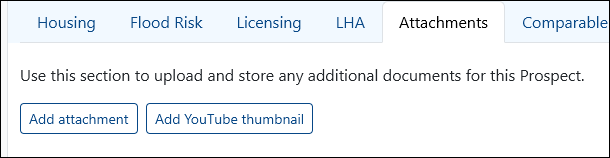
From here, you can either upload an image from your computer or import a YouTube thumbnail.
Upload an Image
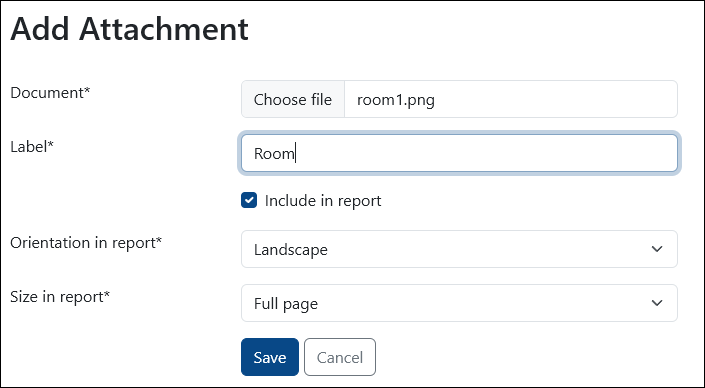
Select the image from your computer and enter the relevant information.
Document
Choose the image you want to upload.
Label
Enter the name you want the image to have in your PaTMa account.
Include in Report
Select this option if you want the image to appear in your downloadable property reports.
Orientation in Report
Choose whether the image should be displayed as landscape or portrait in your report.
Size in Report
Choose how much space the image should take up in your downloadable report.
Add a YouTube Thumbnail
If you've recorded or found a video tour of the property, you can import its YouTube thumbnail.
This can be useful when the thumbnail provides an additional view of the property that isn't included in the original listing.
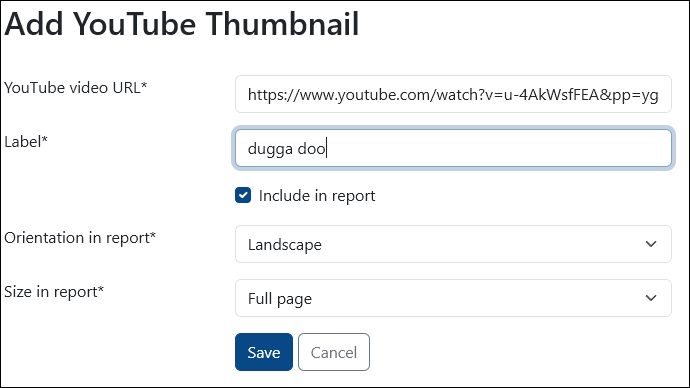
Enter the following information:
YouTube Video URL
Enter the URL of the YouTube video.
Label
Enter the name you want the image to have in your PaTMa account.
Include in Report
Select this option if you want the thumbnail to appear in your downloadable property reports.
Orientation in Report
Choose whether the image should be displayed as landscape or portrait in your report.
Size in Report
Choose how much space the image should take up in your downloadable report.
View and Manage Your Images
All images you've added are displayed in the property's Attachments tab.
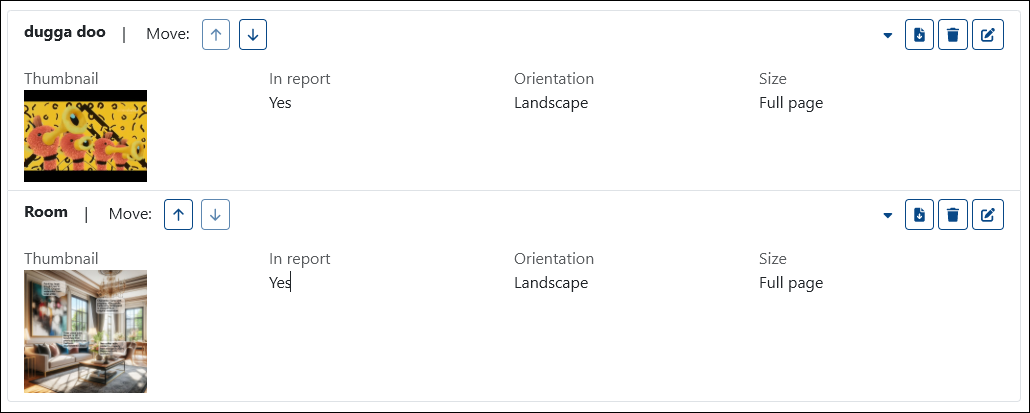
You can manage each image using the icons on the right.
Depending on the image, you can:
- Download the image
- Edit the image
- Delete the image

Important: Deleting an image is permanent. PaTMa does not keep a backup of deleted images, so make sure you have another copy if you may need it again.