Buy to Sell
Overview
Deal Finder supports three types of property investment:
- Buy to Let
- Buy to Let as an HMO
- Buy to Sell
Buy to Sell usually involves investing in a property, often through refurbishment or other improvements, with the intention of increasing its value before selling.
Deal Finder includes financial calculators to help you understand the potential costs and returns of a Buy to Sell investment. You can customise the figures based on your own plans and assumptions.
Important: Deal Finder's calculations are based on the figures you enter and the estimates provided by the system. They do not confirm whether your figures are realistic. Please consult a professional before making decisions based on these figures.
Creating a Buy to Sell Plan
You'll need to have the property added to your Shortlist before you can create a plan.
1. Open the Property
From your Shortlist, select the property you want to analyse.
The Plan tab should open by default. If it doesn't, select the Plan tab.
2. Add a Plan
Select Add Plan.
Deal Finder will create a financial plan for the property, with some values estimated based on information such as the property type and list price.
A typical Buy to Sell plan considers three main areas of cost:
- Acquisition: The cost of purchasing the property.
- Refurbishment: The cost of preparing or improving the property before it is ready to sell.
- Ongoing Expenses: Costs or fees you may incur while refurbishing the property, such as council tax.
The plan also considers your expected sale value.
Acquisition
The acquisition section covers your initial investment in purchasing the property.
If you don't have all the figures available, Deal Finder will try to estimate them based on the property's list price.
For more information about the acquisition plan, see the Acquisition Plan.
Refurbishment
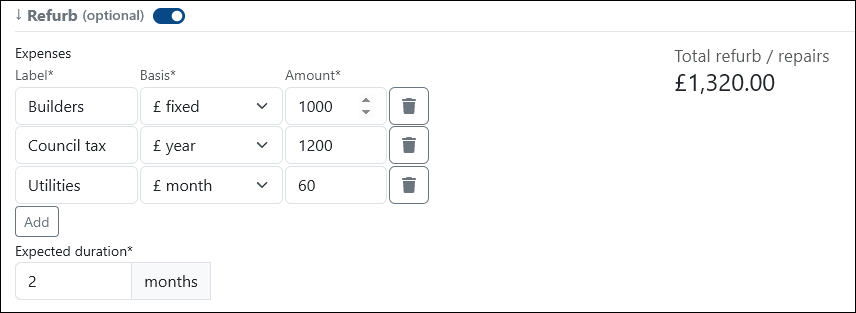
If you intend to refurbish, repair or upgrade the property, switch on the Refurb option.
This adds a new section where you can enter your refurbishment costs and expected timeframe.
Expenses
Add costs for things such as:
- Building work
- Council tax
- Utilities
You can set each expense as a monthly, annual or one-time cost.
Add
Use Add to include any other expense that isn't covered by the standard options.
Expected Duration
Enter how long you intend to hold the property.
This is also used to calculate how many instalments you'll pay for recurring costs.
Sale Revenue
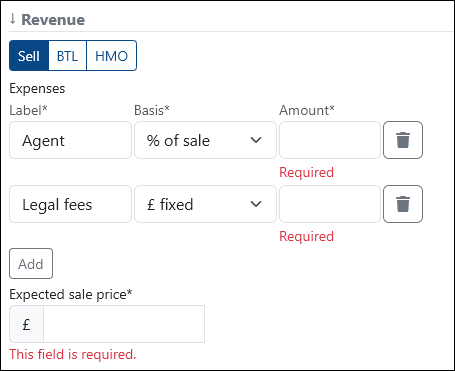
To set up your expected sale value, scroll to the Revenue section and change it to Sell.
You'll then be able to enter the figures associated with selling the property.
Expenses
Add expenses associated with the sale, particularly third-party fees.
Add
Use Add to include any other fees associated with the sale.
Expected Sale Price
Enter the amount you expect to sell the property for.
This does not necessarily need to be the same as the property's original list price.
Once you've entered your figures, select Save Plan to store the financial overview.
Viewing Your Plans
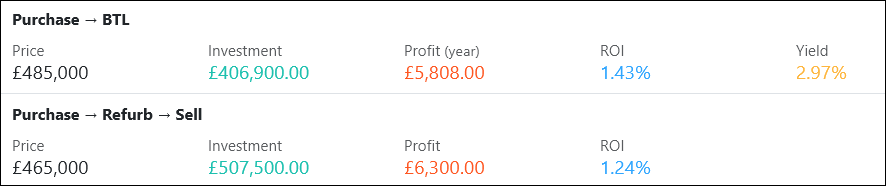
Once you've saved a plan, it will appear on the property's Plans tab.
Each plan is summarised so you can compare your different scenarios at a glance.
Select Details to view more information or edit an existing plan.
All types of financial plan for the property are displayed here.
Important: Deal Finder does not tell you whether your figures are realistic. The calculations are based on your input and the estimates provided by the system. Please consult a professional before making decisions based on these figures.
