Buy to HMO
Overview
Deal Finder supports three types of property investment:
- Buy to Let
- Buy to Let as an HMO
- Buy to Sell
An HMO has several key differences from a standard rental property:
- You will have multiple tenancies for the same property, usually divided into rooms or units.
- The property may need to be converted or refurbished to meet HMO standards.
- Additional licensing from the local council may apply.
Deal Finder includes financial calculators to help you understand the potential costs, income and profitability of an HMO investment. The figures can be customised based on your plans, and Deal Finder includes HMO-specific rules and fees where available.
PaTMa also offers a suite of tools for managing HMO properties.
Important: Deal Finder's calculations are based on the figures you enter and estimates provided by the system. They do not confirm whether your figures are realistic. Please consult a professional before making decisions based on these figures.
Creating a Buy to HMO Plan
You'll need to have the property added to your Shortlist before you can create a plan.
1. Open the Property
From your Shortlist, select the property you want to analyse.
The Plan tab should open by default. If it doesn't, select the Plan tab.
2. Add a Plan
Select Add Plan.
Deal Finder will create a financial plan for the property, with some values estimated based on information such as the property type and list price.
For a Buy to HMO investment, the plan considers four main areas of cost:
- Acquisition: The cost of purchasing the property.
- Refurbishment: The cost of preparing the property before it can be let.
- Ongoing Expenses: The costs of maintaining the property and any bills you pay as the landlord.
- HMO Licence Fee: The cost of any HMO licence paid to the local council.
The plan also considers your rental income, based on the individual units being rented.
Acquisition
The acquisition section covers your initial investment in purchasing the property.
If you don't have all the figures available, Deal Finder will try to estimate them based on the property's list price.
For more information about the acquisition plan, see Acquisition Plan.
Refurbishment
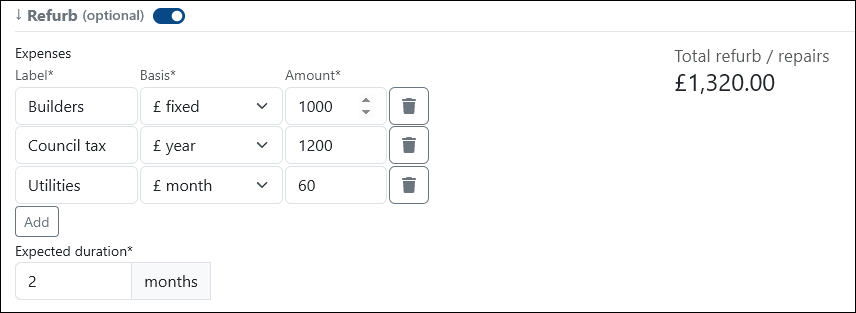
If you intend to refurbish, repair or upgrade the property before letting it, switch on the Refurb option.
This adds a new section where you can enter your refurbishment costs and expected timeframe.
Expenses
Add costs for things such as:
- Building work
- Council tax
- Utilities
You can set each expense as a monthly, annual or one-time cost.
Add
Use Add to include any other expense that isn't covered by the standard options.
This is also where you can add conversion costs and the cost of an HMO licence.
Expected Duration
Enter how long you intend to hold the property for.
This is also used to calculate how many instalments you'll pay for recurring costs.
Rental Income
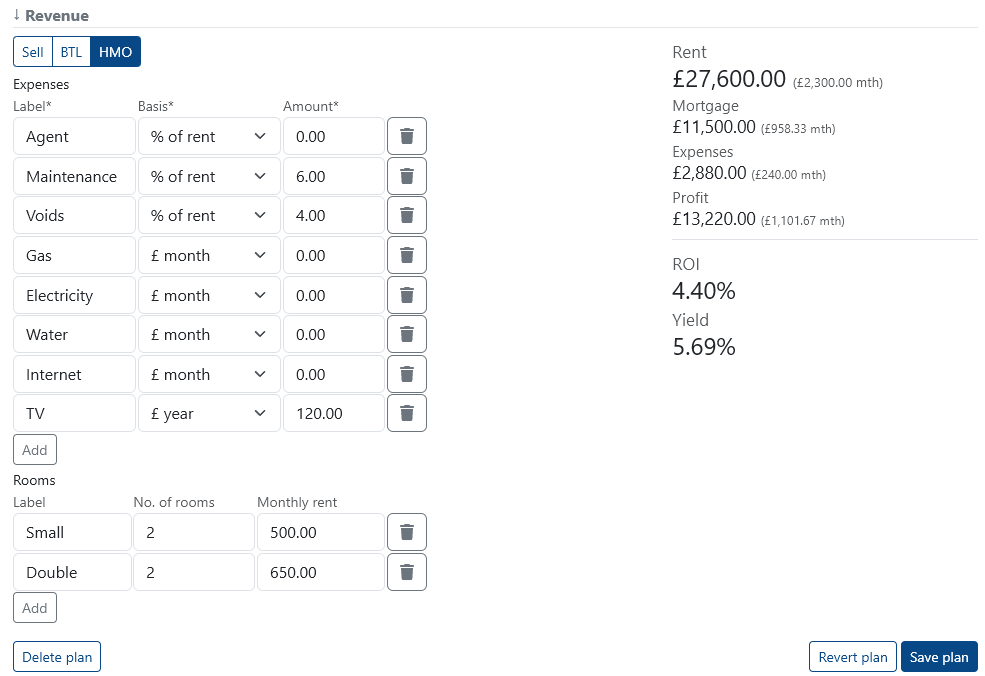
To set up your HMO rental income, scroll to the Revenue section and change the property type to HMO.
You'll then be able to enter the information used to calculate your expected rental income and ongoing costs.
Agent
If you use a letting agent, enter their fee or percentage of rent.
Maintenance
Set a budget for ongoing maintenance, usually as a percentage of rent.
Voids
Enter an allowance for periods when units are empty and not generating rental income.
The original guidance recommends 4% for HMOs, as HMO tenancies can be shorter and may therefore result in periods where rooms are unlet.
Utilities
Enter the cost of any bills that you pay as the landlord.
Do not include bills that are paid directly by your tenants.
Add Your HMO Units
HMO rental income is entered on a per-unit basis, although you can group units together when they have the same rent.
For each group of units, enter:
Label
Add your own reference for the rooms or units.
Number of Rooms
Enter how many rooms are included in this group.
Monthly Rent
Enter the monthly rent for each unit in the group.
As you change the figures, Deal Finder will update the calculations shown on the right.
Once you've entered your figures, select Save Plan to store the financial overview.
Viewing Your Plans
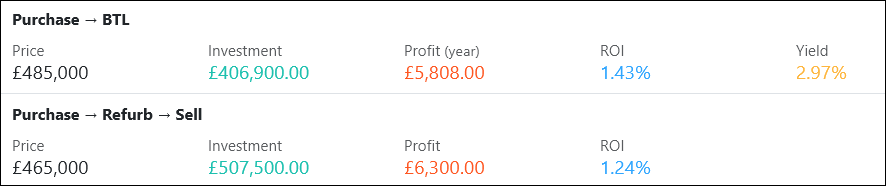
Once you've saved a plan, it will appear on the property's Plans tab.
Each plan is summarised so you can compare your different scenarios at a glance.
Select Details to view more information or edit an existing plan.
All types of financial plan for the property are displayed here.
Important: Deal Finder does not tell you whether your figures are realistic. The calculations are based on your input and the estimates provided by the system. Please consult a professional before making decisions based on these figures.